Transfer Desk Problem in SunSystems 6.3.1

DOMN_ROOT_SRVR_FLDRS

DOMN_CHILD_SRVR_FLDRS

Why I cannot select any Business Unit in MS Office 2016 - Q&A?


  1. Open any one Office 2016 app, such as Excel.
  2. Click on the File tab.
  3. Select the Account tab on the left-side pane. On the right-side pane, locate the Office Updates section. Click on Update Options button, and then click on Disable Updates.
  4. Navigate with CMD commands to the following folder: C:\Program Files\Common Files\Microsoft shared\ClickToRun then run this command: OfficeC2RClient.exe /update user updatetoversion=16.0.9330.2087

SQL Installation

Notes for SQL Installation:

  • Install all features using default values
  • Do not change the default instance “MSSQLSERVER”
  • Specify the Authentication Mode as Mixed Mode andAdd Current User in every configuration.
  • ”sa” and password user will be used in Q&A Configuration

Windows Installation

  1. Install Windows
  2. Computer Name
  3. Set Time Zone
  4. Turn Off Windows Firewall
  5. Turn off IE Enhanced Security Configuration
  6. Run Windows Update
  7. Set IP Address
  8. Configure Remote Desktop
  9. Add Feature https://sp-kb.blogspot.com/2019/06/windows-roles-and-features.html
  10. Go to SQL Installation

Implementation Steps


  1. Create Business Unit
  2. Create User’s ID
  3. Set up Business Unit
  4. Copy Core Database to Newly Created Business Unit
  5. Compile Forms
  6. Regenerate the Filter Data Dictionary
  7. Amend the setup of the newly created business unit as the various setup fields of the newly created business unit are populated by the core business unit data during the business unit copy
  8. Define Asset Depreciation Timing Rule
  9. Amend the Business Unit Ledger Set up
  10. Create Site’s Address with Site’s OrgID as the address code
  11. Create Payment Terms
  12. Set up the name of the newly created business unit
  13. Create or Amend Label or Name of the newly created business unit budget ledgers
  14. Set up/amend various Dimensions
  15. Attach Dimensions to various Table Structures
  16. Set up Currency Codes
  17. Create/Amend Transfer Profile Designer
  18. Create/Amend Dimension Codes or through Vision XL Upload
    1. Resource
    2. TFWW – To/From Who/Where
    3. FUND - Fund
    4. FNCT - Function
    5. RSTR - Restriction
    6. ORGID – SDA Organization
    7. WHO - Employee/Donor
    8. FLAG - Print In/Out
    9. PROJ – Project
    10. CLASS – Class of Accounts
    11. TYPE -  Type
    12. LOCAL - Localization
  19. Setup Chart of Accounts
    1. Upload data through Vision XL
  20.  Setup AP/AR & Debtors/Creditors Supplier Record
    1. Upload data through Vision XL
  21. Set up Exchange Rates
    1. Period Rates Table
    2. Daily Rates Table
  22. Setup Journal Types
    1. Establish Ledger Sequence Number
    2. Create/Implement Journal Preset
    3. Create/Amend Journal Type
  23. Design Navigation Manager
    1. Create various user’s group
                                          i.    Redesigned Navigation Manager
  1. Populate Business Unit with beginning balances
  2. Enter Budget through ledger import
  3. Test Financial Statements and Reports
    1. Vision Executive Statements
    2. SunPlus Reports
                                          i.    Trial Balance
                                        ii.    Journal Listing
                                       iii.    Account Statement
                                       iv.    Etc
  1. Design Localize Financial System
  2. Start entering transactions through Ledger Entry

Update Windows Roles and Features

Server Roles
  CheckApplication Server
  File and Storage Services (1 of 12 installed) - selected by default
  CheckWeb Server (IIS)
Expand.NET Framework 4.5 Features
  CheckASP.NET 4.5
  ExpandWCF Services
    CheckHTTP Activation
    CheckMessage Queuing
    CheckNamed Pipe Activation
    TCP Port Sharing (checked by default) 
Role Services
  ExpandCommon HTTP Features    
    CheckDefault Document
    CheckDirectory Browsing
    CheckHTTP Errors
    CheckStatic Content
    CheckHTTP Redirection
  ExpandHealth and Diagnostics
    CheckHTTP Logging
    CheckCustom Logging
    CheckLogging Tools
    CheckRequest Monitor
    CheckTracing
  ExpandPerformance
    CheckStatic Content Compression
  ExpandSecurity
    CheckRequest Filtering
    CheckBasic Authentication
    CheckDigest Authentication
    CheckWindows Authentication
  ExpandApplication Development
    Check.NET Extensibility 3.5
    Check.NET Extensibility 4.5
    CheckASP .NET 3.5
    CheckASP .NET 4.5
    CheckISAPI Extensions
    CheckISAPI Filters
  ExpandManagement Tools
    CheckISS Management Console


NOTE:
    If you have checked something you shouldn’t check and you want to remove a check, go toManage menu at top ofServer Manager>Dashboard interface

Event Profiles

7ADD, 7ANC_LOOKUP, 7BUS, 7CNC, 7CND, 7COA, 7FAS, 7FASDPS, 7LE, 7LECRA, 7LEI_A, 7LEI_O, 7LE_POST_RTNJNL, 7LI, 7SUS To Upload Chart of Account 7COA (Suspend after upload Re-Open) 7ANC_LOOKUP (Suspend after upload Re-Open) Posting Fix Asset Without Fix Asset Code 7LEI_O  Action: Suspended ad after Posting Re-Open

How do I update the dictionary on FS?

1. Open the FS
2. Edit - Dictionary
3. Backup - Import
4. File Name (Browse to the file location)
5. Import
6. Do you with to continue with the import? Yes
7. Import Complete. Ok

What is the sequence of running services in SunSystems 6.3.1?

V1

  1. SunSystems Configuration Service
  2. SunSystems Connect Server
  3. SunSystems Web Services
  4. SunSystems Session manager
  5. SunSystems Security Service
  6. SunSystems Report manager Services 

V2
  1. Databases (Restart of MS SQL)
  2. SunSystems Security Service
  3. SunSystems Configuration Service
  4. SunSystems Connect Server
  5. SunSystems Session manager
  6. IIS (Via IIS Manager)
  7. SunSystems Web Services
  8. SunSystems Report manager Services

How to create Business Unit in SunSystems 6.3.1?

This steps done by Implement

1. Business Unit Administration
2. Select SunSystemsData
3. Explode All
4. Select SunSystemsData (Group Type=Live)
5. Create
6. Business Unit Code: AAA
7. Ok
8. Does not exist; do you wish to craete?
9. Yes
10. Business Unit Description: Adventist Church Conference Test
11. Value 1: Base Currency Name: Dollars; Base Currency:USD1
12. Value 2: Default
13. Value 4: Default for multi currency; For single currency (4th Currency Value Name=Base Currency Name, 4th Currency Code=Base Currency)
14. Ok
15. Cancel
16. Ok
17. Ok
18. Ok
19. Finish
20. Exit
21. Business Unit Administration
22. Select Business Unit; Status=Offline
23. Put Online
24. The following Business (Unit(s) will be put online-AAA : Yes
25. Exit
26. Done

How to restore database in SunPlus 5.4.1?


  1. Run Command Prompt as Administrator
  2. Run Step 1-8
  3. Stop Services
    1. SunSystems Connect Server
    2. SunSystems Security Service
    3. SunSystems Session Manager
  4. RESTORE DATABASE
SUNPLUSADV
SU_DOMAINDB
GSDB
  1. Start Services
  2. Open SQL Server Management Studio
    1. Open 
SU_DOMAINDB
Tables
DOMN_DSRCE_CONFIG
SRVR_FILES
C:\ProgramData\Infor\SunSystems\SharedFiles\ServerFiles
ROX_PATH
C:\ProgramData\Infor\SunSystems\SharedFiles\ExampleReports 
  1. User Manager
    1. Settings
      1. SunSystems 5
        1. Configure
          1. Server : <masukan nama server>
          2. Database: SU_DOMAINDB 
        2. Operator Activity 
          1. Clear
  2. Setup.hta
    1. SunSystems Domain Utility Menu (baris paling akhir)
      1. Re-link SunSystems Data to SunSystems Domain
        1. Datasource Name : SU_DOMAINDSN
        2. Instance Name : <Server Name>
          1. Business Unit Group Name : ADVGRP
          2. SQL Server Instance Name: <Server Name>
          3. SunSystems Database Name: SUNPLUSADV
            1. Group Name : SUServices
            2. Group Name : SUClient 
  3. Install/Synchronize Patchset (Stop Services When Installing)

How to login and logout in SunSystems?

1. Double click the SunSytems shortcut icon on the desktop
2. Type Username and Passwrod
3. Click Sign in or hit enter

There are three different menu in SunSystems
1. Tab Menu
2. Lookup Menu
3. Search Menu

To logout form SunSystems, Click X button on the right top corner.

Notes. If you don't have an account yet, Please contact your local support. The user accounts can be created in User manager.

How do I change Current Period, Open Period and Open Dates in SunSystems?

  1. Open Ledger Setup and click amend
  2. Set current period
  3. Set open period range
  4. Set open date range 

How do I close an account in SunSystems?

How to re-open closed/Completed account in SunSystems?

How do I create a new user in SunSystems?

1. Open User Manager by double click on the icon. Log in using following credentials
    Username : suadmin
    Password : <enter suadmin password>
    Note - If you don't know what is the password, please contact the support team

2. Click on add user icon
3. Fill up
User Name
Group Membership
Full Name
Description
Title
Tick on Enable Standard Authentication for this user
Password (click on ... to create a password)

4. Click on Windows Authentication. If you require the user login automatically using windows credential
Tick on Enable Windows authentication for this user
Windows account
5. Click on SunSystems 5
Operator Code
Lookup COde
Short Heading
Default Business Unit
Default Budget
Language
Set Operating System Date

FINISH


How to Enabling the Infor Q&A or Add-Ins in Excel


Open C:\Program Files (x86)\Infor\Query and Analysis\ExcelAddinRemoveAdd (double click)


Tick the Microsoft Excel Box and then the Apply Button


Open up Microsoft Excel and make sure “Infor Q&A” or “Add-Ins” appear


If Infor Q&A or Add-Ins doesn’t appear, follow the next steps. Open up Microsoft Excel, Click on File, then Options.


Choose the Add-ins tab on the left. At the bottom of box-Manage: COM Add-Ins and click the Go button.


Tick the Infor Query and Analysis Add-In box and click OK.


The following tab should then appear in your Menu Ribbon


How to Update Application Role


STEP 1


Open User Manager, Enter Username and Password then click OK


Settings – SunSystems 5- Manage Application Role


Fill Application Role Name, Application Role Password, Re-enter Password, OK, OK


STEP 2 

You need to continue with STEP 2 if you do fail in STEP 1
Usually, the problem was in Password Policy as you see in next image


continue next step.....
Search and Open Local Security Policy, "change Password must meet complexity requirement" from Enable to Disable


Change to Disable - Apply - OK


Go back to STEP 1


Reversal Journal SunSystems 5.4.1

Click the Ledgers horizontal tab  
Click to select Journal Reversal and Copy
Type the number of the journal you wish to copy into the Journal Number - From field.
Click the OK button
Click the Review All button
Click the dropdown arrow to the right of the Report Process field
Select Journal Reversal from the list
Click the OK button
Click the Use Original Transaction Date field , Select Yes from the list
Click the Use Original Period field  Select Yes from the list
For every Journal Reversal you will be required to enter an explanation, Click the Note text tab
Click the Post button
Click the OK button to begin the Reversal process
We have now finished reversing the journal, so we will click the Exit button
And again. Click the Exit button

End of Procedure

How to Install SunSystems 5.4.1

Installing SunSystems 5.4.1
Special for Adventist we call it SunPlus

Step by step for Windows Server 2008 and Windows 7

1. Install clean Windows
2. Set Computer name
3. Add Features .Net and Power Shell
4. Run Compressed Installer, it will create folder in C:\Windows\temp\Software
5. Run Command prompt as Administrator
6. C:\Windows\temp\software\setup.hta
7. Follow the step until finish installing patchset
8. Restart server and your SunSystems is ready

you can ask SunPlus Support for installer and serialization
after that you can restore your database if any

An error when open SunSystems 5.4

Why I cannot connect to SunSystems?

Make sure 3 Services is running or "Started" on server


Error on the running balance

Error on the running balance
Do you ever find when running a “Statement of Account”  but the running balance figures show that is not appropriate.

It can be caused by two things
  1. Perform “Journal Reversal” through the menu of the systems, but at the time of selecting the "use original period" is NO, which supposedly is YES
  2. Errors when replacing the "Allocation Maker" to "Correction" in different periods


How to Fix It
Use the Account Allocation menu. Instead of "Correction" to "Not Allocated" then press Post by Base. Then running a "Statement of Account" and it would be proper running balance.

============================================================

In Bahasa
Kesalahan pada running balance
Pernahkah anda temukan ketika menjalankan “statemen of account”, namun pada running balance menunjukan angka yang tidak tepat.
Hal ini bisa disebabkan oleh 2 hal:
  1. Melakukan “Journal Reversal” melalui menu dari systems, tetapi pada saat memilih "Use Original Period" adalah NO, yang seharusnya adalah YES
  2. Kesalahan ketika mengganti "Allocation Maker" menjadi "Correction" pada periode yang berbeda


Cara memperbaikinya
Gunakan menu Account Allocation ganti "Correction" menjadi "Not Allocated" setelah itu tekan tombol Post by Base

Apabila menjalankan "Statement of Account" maka running blance akan tepat

New Ways to Reconcile

How to do reconciliation in SunSystems?
How to reconcile Balance Sheet Account?
Example:
How do you know which AP already paid
or Which AR already received

Here is the step:

Case: Account Payable Account is 337110, we want to know what transaction have not been paid!

  1. In SunSystems you have 10 Analysis, Please open GDCoA Setup
  2. Open 337110 then amend and make DTLS is Mandatory
  3. Go to Analysis Code Setup
  4. Analysis Dimension is : DTLS Analysis Code : R Name : Reconcile
  5. Generate Statement of Account : 337110
  6. Check for Transaction that already paid (Check Debit and Credit)
  7. Go to Account Allocation
  8. Mark the Transaction R in DTLS Analysis
  9. Create a Report in Excel
  10. Generate 337110 with DTLS without R
  11. You will get Transaction without R, it means have not paid yet
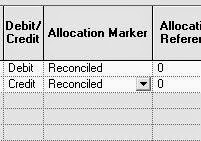
There is other way to Reconcile that already prepared by SunSystems, the same way but not in DTLS but in Allocation Marker.

How to Record Fix Asset - SunSystems 5.4.1

How to Record Fix Asset
1. Fix Asset Setup
    - Asset Posting Preset
2. Ledger Entry :
    Example: Purchase Asset using Cash or Bank Rp.2.000.000

Dr/Cr AccCode Acc Name TFWW FUND FNCT REST FLAG Amount
Dr 997110 Transfers Between Fund 20 10 UFNT 01 OUT 2.000.000
Cr 102110 Cash or Banks or A/P 10 2.000.000
Dr 205205 Asset (according to asset type and attach asset register) 20 2.000.000
Cr 997110 Transfers Between Fund 10 20 UFIN 01 IN 2.000.000


Case 1
Fund Will be take form AFOEQUIP01 (Dana diambil dari AFOEQUIP01)

Dr/CrAccCodeAcc NameTFWWFUNDFNCTRESTFLAGAmount
Dr995110Transfers Between FunctionUFNT10AFOEQUIP0105OUT2.000.000
Cr995110Transfers Between FunctionAFOEQUIP0110UFNT01IN2.000.000

Case 2
Fund will be take from Department DSYOUTH01 (Dana diambil dari Department DSYOUTH01)

Dr/CrAccCodeAcc NameTFWWFUNDFNCTRESTFLAGAmount
Dr995110Transfers Between FunctionUFNT10DSYOUTH0101OUT2.000.000
Cr995110Transfers Between FunctionDSYOUTH0110UFNT01IN2.000.000

Case 3
Fund will be take from Trust Fund (Dana diambil dari Department Trust Fund)

Dr/CrAccCodeAcc NameTFWWFUNDFNCTRESTFLAGAmount
DrTrust FundTrust Fund
10

OUT2.000.000
CrCapital IncomeCapital Income
10UFNT01
2.000.000
FINISH